
PowerCRM Tenant Registration and Support Guide
Audience: Customer support, onboarding, sales, and operations colleagues
Purpose: Help colleagues explain the tenant journey, guide new customers safely, and collect the right information when something goes wrong.
This is a practical support guide, not a promise that every step is instantaneous. Provisioning, email delivery, and payment confirmation can depend on external services and tenant configuration. Confirm the current status in the relevant screen before telling a tenant that an action has completed.
1. The tenant journey at a glance
Choose a plan → Register contact and company → Submit registration
    → Verify email → Sign in → Provision tenant workspace
    → Complete first-use setup → Start using PowerCRM
    → Pay or manage subscription when the plan requires it
The tenant should finish in their own company workspace. The internal SaaS administration area is for authorized staff and should not be presented as the tenant's destination.
2. Before the tenant starts
Help the person make sure they have:
-
Access to an email inbox they can open now. They will need it to verify the account and receive service messages.
-
The correct company name and contact details.
-
A clear idea of how many colleagues need access and which CRM features they need.
-
The intended plan, billing period, trial duration, limits, and price in the displayed currency.
-
A reliable connection while submitting the form and waiting for the workspace setup.
If they are unsure which plan to choose, ask about their expected users, storage, and required modules. Show the subscription comparison page and explain the listed limits. Do not select a plan or promise a feature on the customer's behalf without their agreement.
3. Registration and verification
Step 1: Choose the subscription
The selected plan is carried into registration and shown as the selected plan. Before they continue, ask the customer to confirm the plan name, price, billing period, trial terms, and any important limits.
Step 2: Enter account details
The registration form collects contact, company, and password details across its steps. Encourage the customer to use a valid email address and a password they have not shared with support. Colleagues must never ask the customer to send their password.
Step 3: Submit once and wait for confirmation
The submit action may take time because the system creates the account and starts tenant setup. Ask the customer to wait for the on-screen result and avoid repeated submissions or refreshing while a request is still running. Repeated submissions can create confusion or duplicate requests.
If the page appears stuck, note the approximate submission time and the last visible message. Check whether an account or tenant was created before asking the customer to register again.
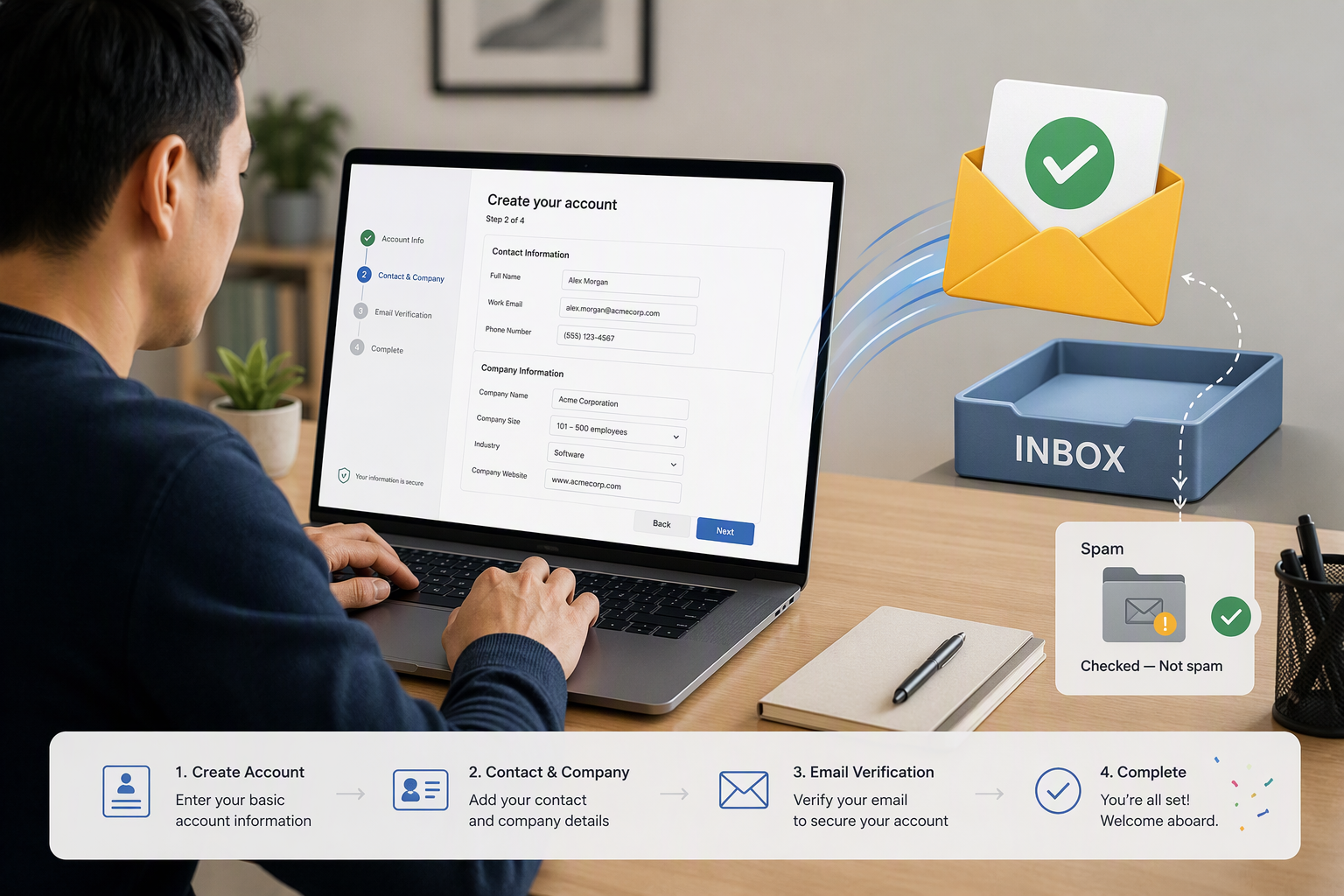
Step 4: Verify the email address
The system sends a verification email. Ask the customer to:
-
Check Inbox, Spam/Junk, and Promotions.
-
Open the newest verification email for the address used during registration.
-
Click its verification button or link.
-
Return to the sign-in page and sign in with that same address.
The verification page may offer a resend action. Use it if the email is missing, then wait briefly and check the folders above. Do not keep clicking old verification links. If a link opens but the account still appears unverified, record the email address (partially masked in shared support notes), link-click time, and resulting page, then escalate for account/token status review.
Important: The welcome/registration email and the email-verification message can be separate emails. The welcome email may summarize the selected company and plan, but it does not itself prove that the address was verified or that payment was received.
4. Tenant provisioning and first sign-in
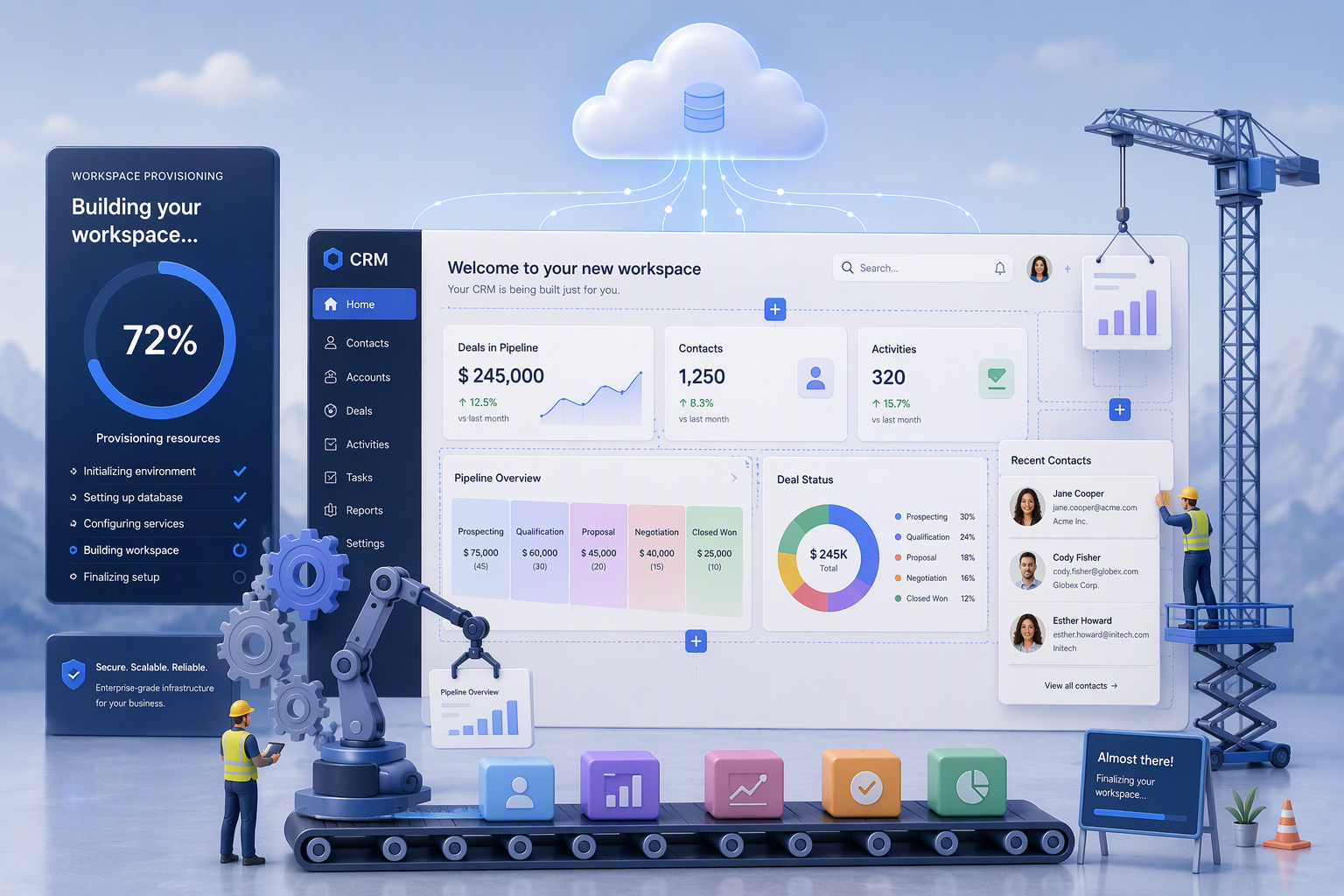
After verification and sign-in, tenant provisioning prepares the company's workspace. The progress screen reports the work as it runs. Tell the customer to leave the page open while progress is active and not to repeat registration.
When provisioning completes, the customer should enter their tenant workspace. If they are sent back to verification, land in an unexpected administration area, or see an error, capture the exact URL path (remove tokens and private query parameters), time, screenshot, and visible message. Do not ask them to share passwords, verification tokens, or payment credentials.
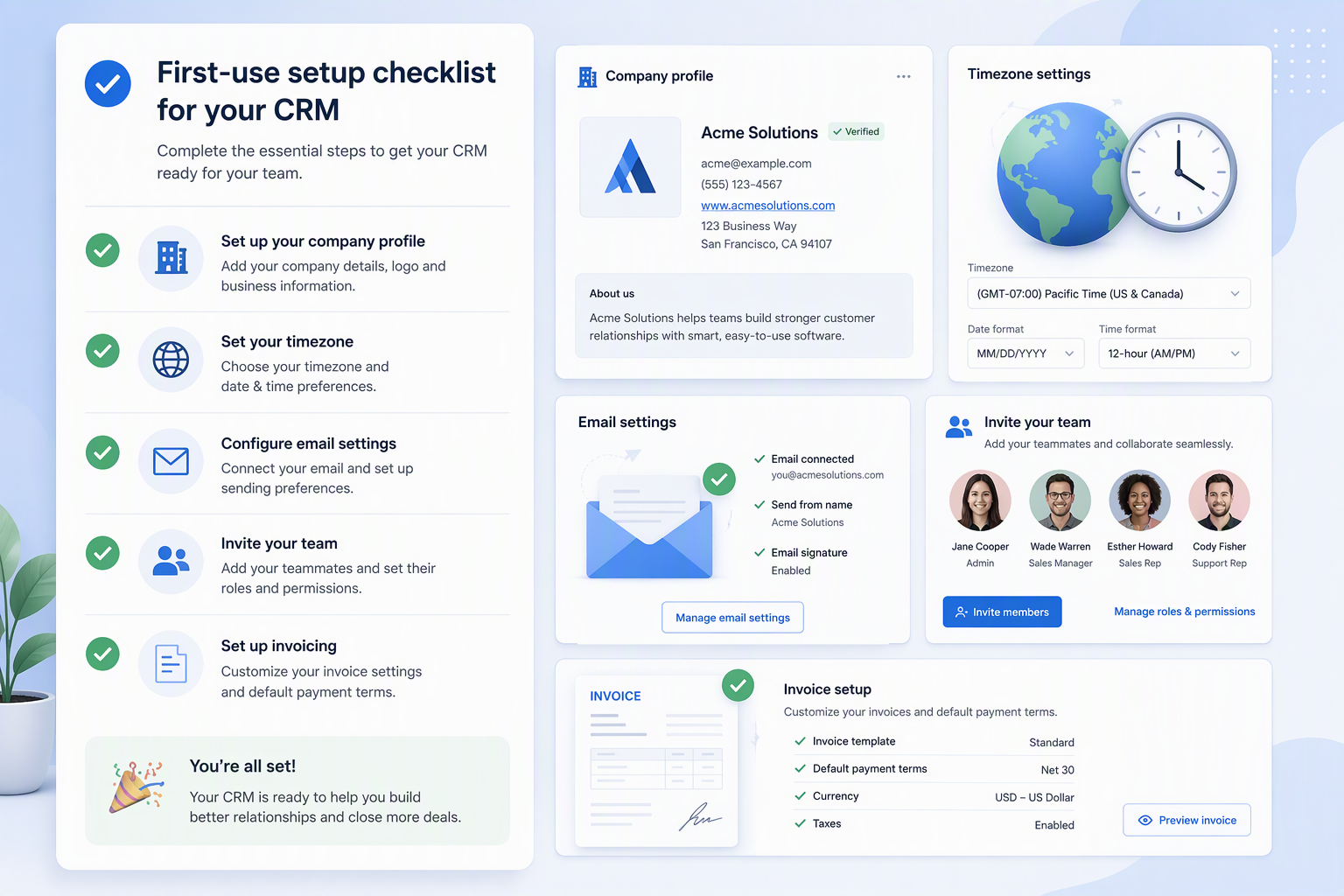
First-use checklist
Guide the tenant through these recommended steps. They can return to the dashboard guidance later; the checklist is there to help, not to block normal work.
-
Complete the company profile so company details can appear on business documents.
-
Set timezone and currency under the tenant's settings/localization area. The timezone is especially important for dates, reminders, and invoices.
-
Review email settings if the tenant needs to send CRM messages from a company address.
-
Invite colleagues and assign appropriate access. Recommend least-privilege access: give each person only the permissions needed for their role.
-
Add a customer or lead to start using the CRM pipeline.
-
Create a first invoice only when the tenant is ready to use billing. Explain draft, sent, due, paid, and overdue states using the labels shown in the tenant's interface.
-
Open help/tutorial resources when the tenant wants step-by-step instructions.
Common timezone message
If the tenant sees “Default timezone not set. Navigate to Setup → Settings → Localization to set default system timezone.”, guide an authorized tenant administrator to:
-
Open Setup → Settings → Localization (menu labels can vary by language/version).
-
Select the company's default timezone. For an Angola-based tenant,
Africa/Luandais usually the appropriate choice, but confirm the company's operating location. -
Save and reload the affected page.
If the setting is already saved and the warning remains, capture the tenant workspace URL path, timezone value, screenshot, and time, then escalate. Do not change a customer's timezone without confirming the correct location.
5. Subscription and payment guidance
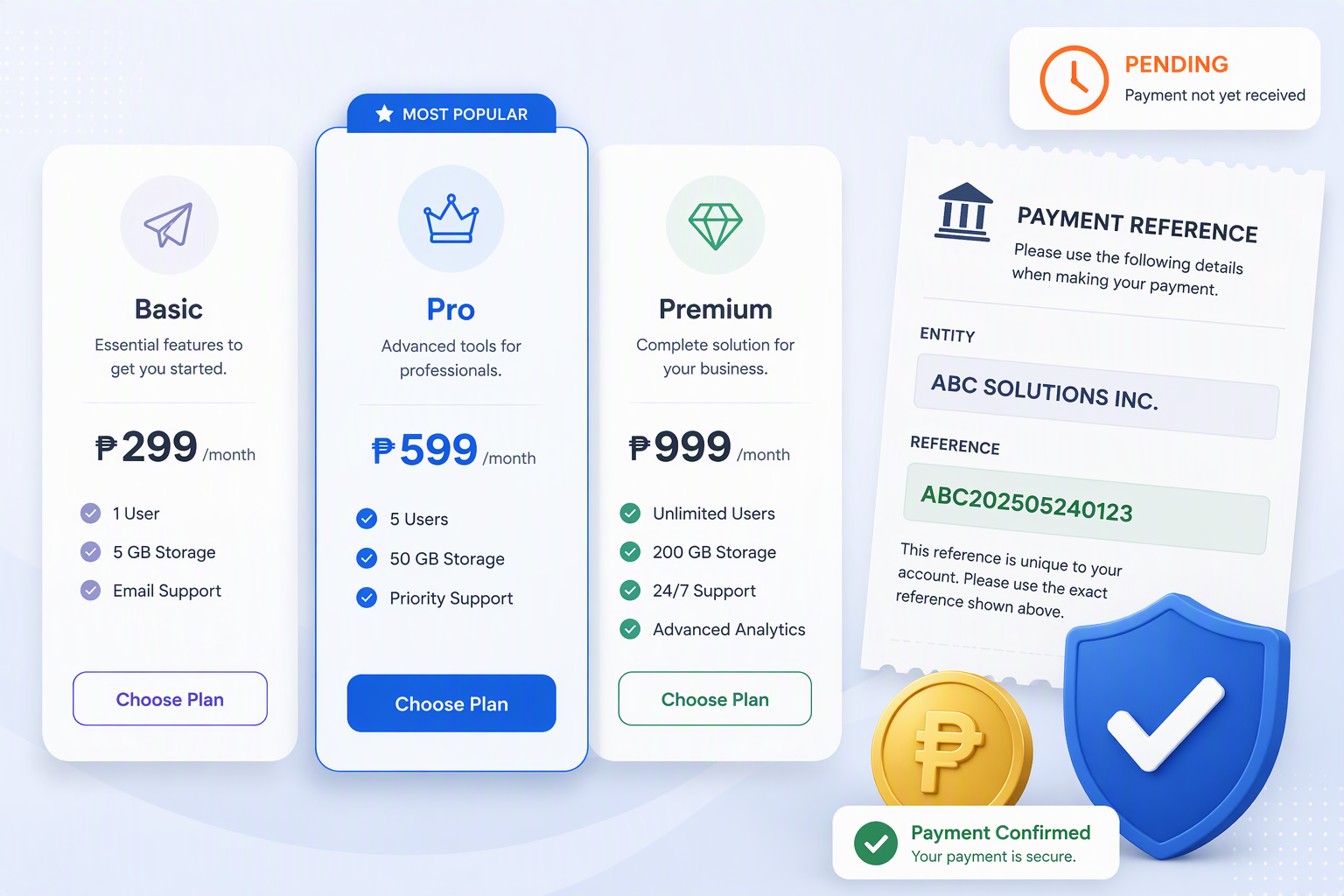
Explain the difference between plan, trial, and payment status
-
Selected plan means the customer chose a package during registration.
-
Trial means the plan is temporarily available under the displayed trial terms. It does not mean a payment has been made.
-
Payment pending/awaiting means the provider has not yet confirmed a successful payment to the application.
-
Paid/credited should be communicated only when the application/provider status confirms it.
-
Subscription active and payment credited are related but distinct states. Check the subscription record and payment transaction rather than inferring one from the other.
Use the subscription comparison page to explain plan price, period, trial, included features, and limits. The Account Center provides subscription and billing access; the tenant may need an authorized account role to view or change these settings.
Pay2EA / reference payments
For a reference payment, the customer uses the entity and reference shown on the payment request and pays through the channels stated on that request. A generated reference is not proof of payment.
When the customer selects Check status:
-
Confirm they are checking the correct request/reference.
-
Check that the reference has not expired and that the customer paid the exact requested amount through a supported channel.
-
Allow for provider processing time, then check again once.
-
Confirm the resulting transaction state in the payment application before saying funds were credited or a subscription was activated.
-
If it remains pending after the provider's expected processing window, escalate with the request ID, masked reference, amount/currency, payment time, provider transaction/log ID if available, and screenshots of both the request and provider result.
Do not ask the customer to send card details, PINs, passwords, one-time codes, or full banking credentials. Do not manually mark a payment paid based only on a screenshot or verbal confirmation; follow the approved reconciliation process.
6. Account Center help
The Account Center groups workspace, users, applications, billing, support, settings, migration, integrations, intelligence, and domain-related information. Access is authenticated and some actions depend on the user's role or plan.
If a page shows 404:
-
Confirm the customer is signed in to the intended tenant, not the public registration site or another company's workspace.
-
Ask them to open the page from the Account Center navigation rather than an old bookmark.
-
Record the page name, tenant workspace slug (not private credentials), URL path, user role, time, and screenshot.
-
Check whether the page is available to that role and subscription.
-
Escalate if navigation still leads to 404. Do not promise access based only on a menu label.
The workspace overview may show technical information such as plan, user count, CRM record counts, timezone/currency readiness, and runtime version to help administrators. This is intended for workspace administration; it should not be used to expose secrets or internal infrastructure details.
7. Domain management
Custom-domain management is subject to both the tenant's plan entitlement and platform configuration. A page that says custom domains are not included is an entitlement message, not necessarily a system failure.
When asked about a custom domain:
-
Check whether the current plan includes custom domains.
-
If it is excluded, explain that the tenant can review eligible plans or contact the account administrator/sales team.
-
If the plan includes it, collect the domain name and the intended tenant/workspace, then check the domain-management instructions and DNS status shown by the system.
-
Do not promise that a domain is live until ownership/verification and DNS checks show it is ready.
Never bypass plan checks or alter DNS on the tenant's behalf without the approved authorization and change procedure.
8. Troubleshooting and escalation
Gather these details
Ask for only the minimum needed to investigate:
-
Tenant/company name and workspace slug.
-
Registration email, masked where shared outside the authorized support system.
-
Approximate time and timezone of the issue.
-
Page name and URL path, with tokens and sensitive query values removed.
-
Exact error text and a screenshot with personal/payment secrets hidden.
-
Browser/device and whether the issue persists after a normal reload or fresh sign-in.
-
For payments: request/transaction ID, masked reference, amount, currency, payment channel, and provider status.
-
For setup: last completed and currently running progress step.
Escalate promptly when
-
A verification link repeatedly returns the customer to an unverified state.
-
Registration appears to have submitted but no account or progress result can be found.
-
Provisioning fails or remains on one step beyond the expected processing period.
-
A payment remains pending beyond the provider's expected window or provider and application statuses disagree.
-
A tenant can see another company's data, reaches the wrong workspace, or encounters a permission/security concern.
-
Account Center navigation still yields 404 from an authenticated tenant session.
-
A domain is entitled but cannot be added, verified, or made ready.
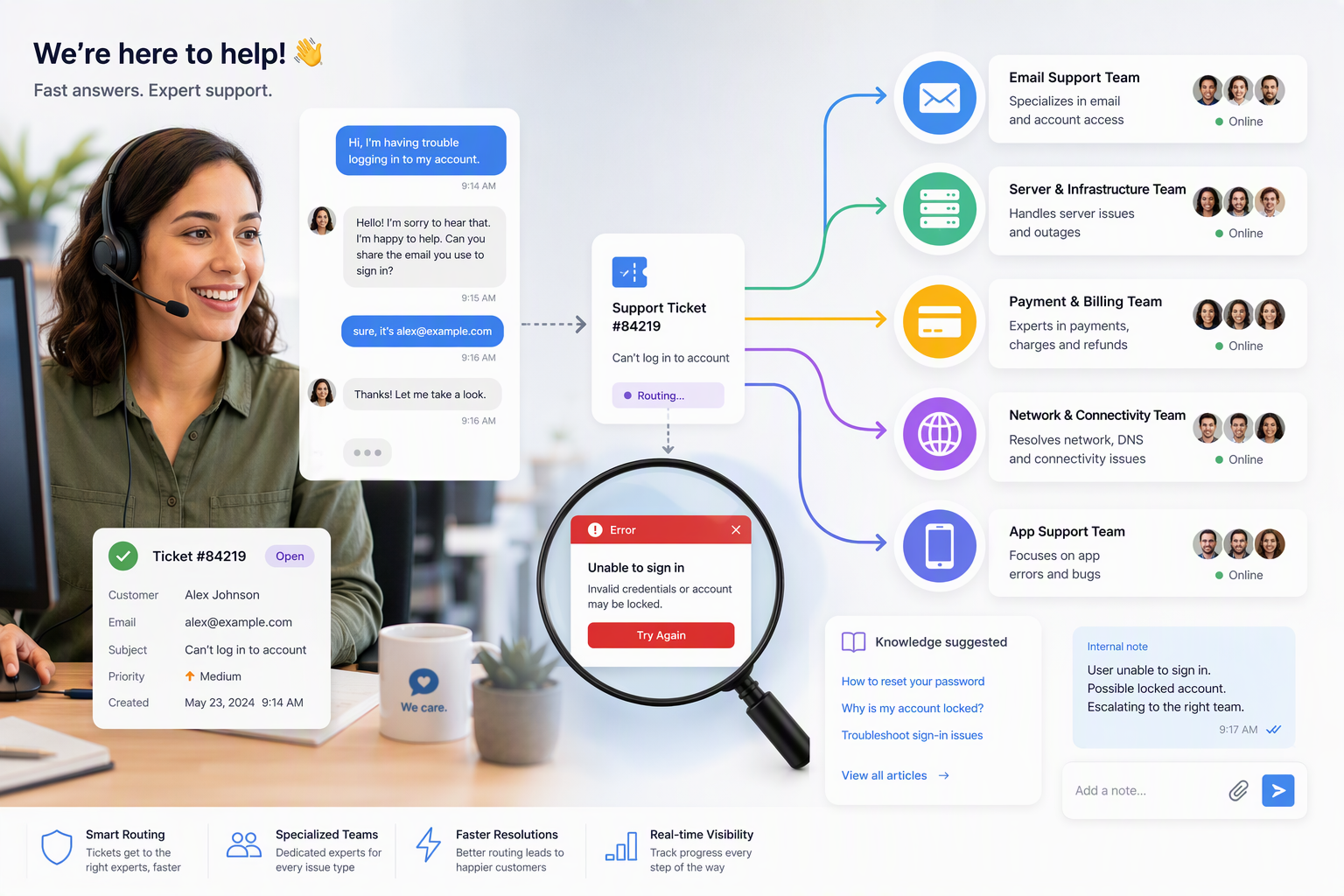
Route the issue to the appropriate team: registration/email, tenant provisioning, billing/payment reconciliation, platform/domain operations, or application support. Include the collected evidence and the checks already performed. Do not include passwords, API keys, full payment credentials, verification tokens, or database credentials in tickets or chat.
9. Suggested messages for tenants
Verification email
Your account is registered, and the next step is to verify the email address you used. Please check Inbox, Spam/Junk, and Promotions for the newest PowerCRM verification email. Open its link, then sign in with the same email address. If it has not arrived, use Resend verification email once and check again shortly.
Workspace setup is still running
Your workspace is being prepared. Please keep this page open while the progress steps run, and avoid submitting registration again. If the screen stops changing or shows an error, send us a screenshot and the time it occurred. Please hide any private tokens or account details.
Payment is still pending
The payment request is still awaiting provider confirmation. Please check that the payment was made using the displayed entity and reference before its expiry. We will confirm activation once the provider status is recorded as successful; a reference alone does not confirm payment.
Domain is not included
Custom-domain access depends on your subscription plan. Your current plan does not show this feature as included. You can review the available plans in the subscription area or contact us to discuss an eligible option.
10. Support principles
-
Be clear about what is known, what is pending, and what the customer should do next.
-
Verify status in the application/provider before confirming completion.
-
Avoid asking customers to repeat actions until you have checked whether the original action succeeded.
-
Protect tenant data: use the correct tenant context and share only information needed to resolve the issue.
-
Never request passwords, one-time passcodes, verification tokens, API keys, card PINs, or full banking credentials.
-
Record outcomes and next steps so the tenant does not have to repeat the story to the next colleague.